Exporting reports
Every report you can filter, you can also download — as a spreadsheet to work with, or as a PDF to send. Exporting is free, has no limit and works on any range of dates.
Where to export from
The Detailed and Cumulative reports have a download icon at the right end of the filter bar. It opens a short menu — Export CSV, Export XLSX, Export PDF — and the file downloads straight away. The Dashboard has no export: its charts are for reading on screen, and the numbers behind them are in the other two reports.

The filters decide what’s in the file
A file holds exactly what the report shows: the same dates, client, project and billable filter you have set in the bar. Narrow the report first, then export. A timer that is still running is left out, because it has no end yet.
The two reports differ in one way. A Detailed file always carries both times for every entry, the tracked one and the rounded one. A Cumulative file carries one of them — the one you chose with the Actual time / Rounded time switch — and its name says which (see file names).
CSV, XLSX or PDF
- XLSX — for Excel, Numbers or Google Sheets. Times are real time values, so you can add them up and they show as 1:30:00; amounts and shares are numbers.
- CSV — for importing into another tool. Fields are separated with a semicolon and the file is UTF-8 with a marker that lets Excel open it with every accented letter intact. Durations are written as HH:MM:SS.
- PDF — a document to send to a client. It lists the filters it was made with, the entries or rows, and the totals the report shows on screen, with amounts per currency. A Cumulative PDF includes both pie charts.
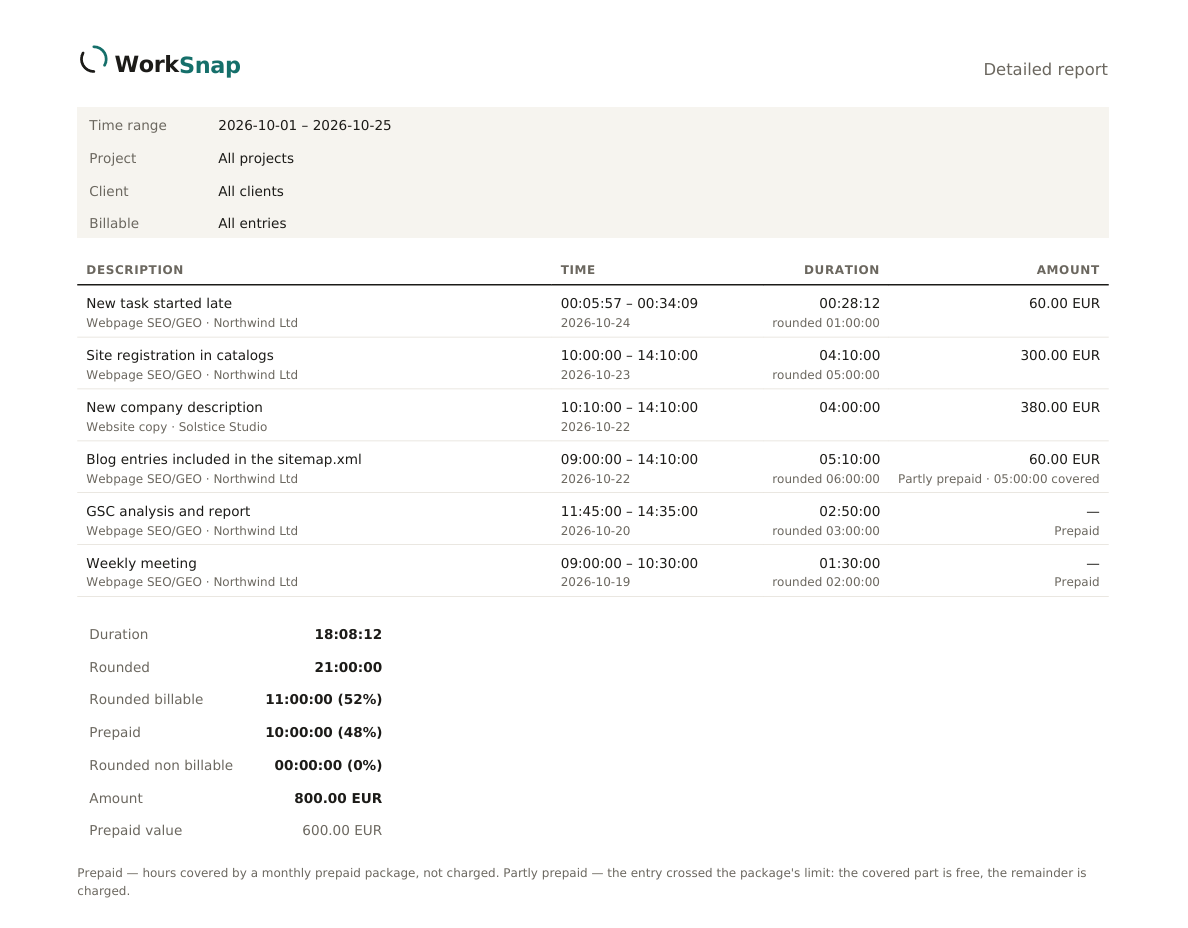
CSV and XLSX are plain data: one row per entry (Detailed) or per project (Cumulative), with no total row at the bottom, so sorting and filtering in a spreadsheet never mixes a total in with the data. A description that starts with =, +, - or @ is written as text, so a spreadsheet never runs it as a formula.
Columns in CSV and XLSX
The columns always come in this order. A new column, if one is ever added, goes at the end, so anything you have built on these files keeps working.
Detailed — one row per entry
- Description — what you typed; empty if nothing
- Project — empty for an entry without a project
- Client — empty when the project has no client
- Start — date and time in your time zone
- End — date and time in your time zone
- Duration — the time you tracked
- Rounded duration — the same time after your rounding rule
- Billable — true or false — a real yes/no value in XLSX
- Amount — what is due for the entry, 0.00 when it isn’t billable or a package covers it
- Currency — the currency of that amount
- Prepaid duration — the time a package of prepaid hours covered, 00:00:00 when none

Cumulative — one row per project
- Client — No client when there isn’t one
- Project — No project for time without one
- Duration — the project’s time, actual or rounded as chosen with the switch
- Share — its share of the total, as a whole number without the % sign
File names
A file is named after the report and the filters it was made with, followed by the date and time you downloaded it, so a folder of exports sorts itself and never overwrites anything:
worksnap-report-2026-10-25_14-30.csv— Detailed, no filters.worksnap-report-acme-website-billable-2026-10-25_14-30.pdf— Detailed for the Acme client, its Website project, billable time only.worksnap-cumulative-no-client-rounded-2026-10-25_14-30.xlsx— Cumulative for time without a client, in rounded time.
The client, project and billable parts appear only when that filter is set; no-client and no-project stand for “without a client/project”, with-client and with-project for “with any”. A Cumulative file always ends with actual or rounded, because the data inside doesn’t say which time it holds. The date range is not in the name — it is in the PDF, and in the Start and End columns of a Detailed file.
Amounts and prepaid hours
Each amount sits next to its currency, and the PDF totals them per currency — amounts in different currencies are never added together. Entries covered by a package of prepaid hours have their own column in CSV and XLSX and are marked in the PDF; what that looks like is in prepaid hours.
Getting your whole history
There is no limit on the date range. To take everything with you, open Detailed, choose Custom in the range list, set the start before your first entry and the end to today, leave the other filters on All, and export — XLSX or CSV if you want to work with the data, PDF if you want a record to keep.
That file holds every time entry you have, each with its project, client, times, rate-based amount and currency. It does not list projects or clients on their own, so a project you never tracked time on won’t appear, and your settings — rates, colours, rounding rules — are not part of it.