Release notes — October 2026
A snapshot of the October 2026 release. For up-to-date instructions, see the Help Center.
October was about reports: a new Cumulative report that adds your time up by project, charts that can count rounded time, and filters that leave out unassigned work. Plus an email for the timer you forgot to stop.
Cumulative: where your time went, actual or rounded
Reports has a new tab, Cumulative, for the question a client — or your own planning — asks most often: how much time went to each project, and what share of the whole is that. One row per project with its client, its time and its share, ending in a total where the shares always come to exactly 100%, under the same two pie charts as on the Dashboard. Here and on the Dashboard you can now count time as you tracked it or as rounded by your rounding rules — the way it lands on an invoice. Download it as CSV or XLSX for your own spreadsheets, or as a PDF that carries the charts along, ready to send.
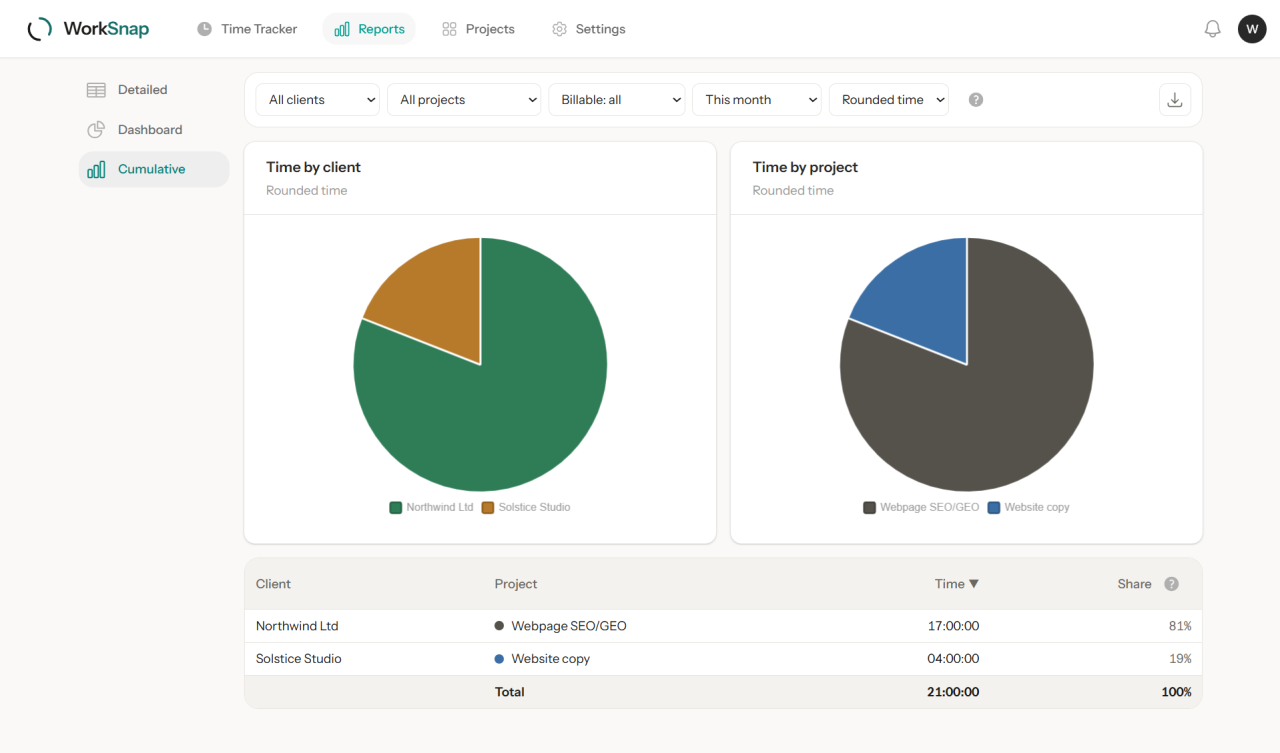
See what the report shows → The Cumulative report
Reports for the work you filed under projects and clients
The project and client filters have a new option each: With a project and With a client. They leave out the loose entries you never assigned, so the charts, totals and exports show only the work you file under your projects and clients — no stray unassigned minutes blurring the picture.
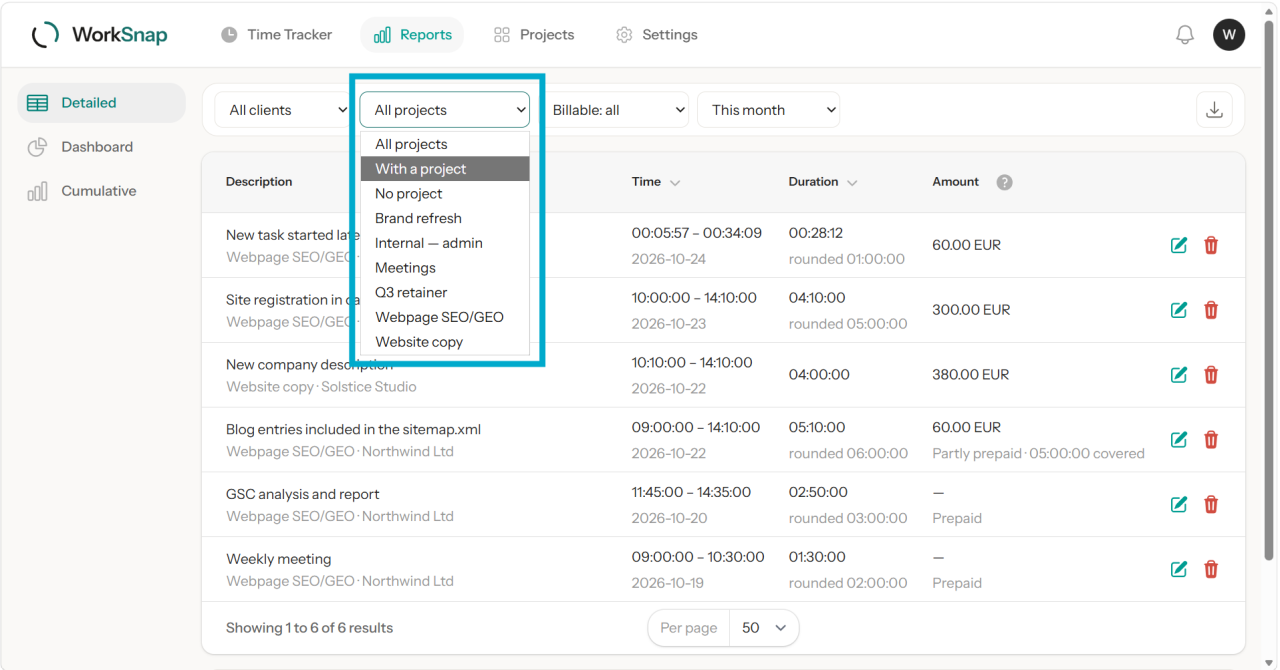
How the two filters work together → Narrowing by project and client
An email when a timer runs too long
A timer left running overnight turns into a fourteen-hour entry you only notice when you invoice. Turn the reminder on, and WorkSnap emails you once a timer has run longer than the hours you choose — once per run, without mentioning what you were working on. While a timer runs, the browser tab also shows the elapsed time, so you can see it from any other tab.
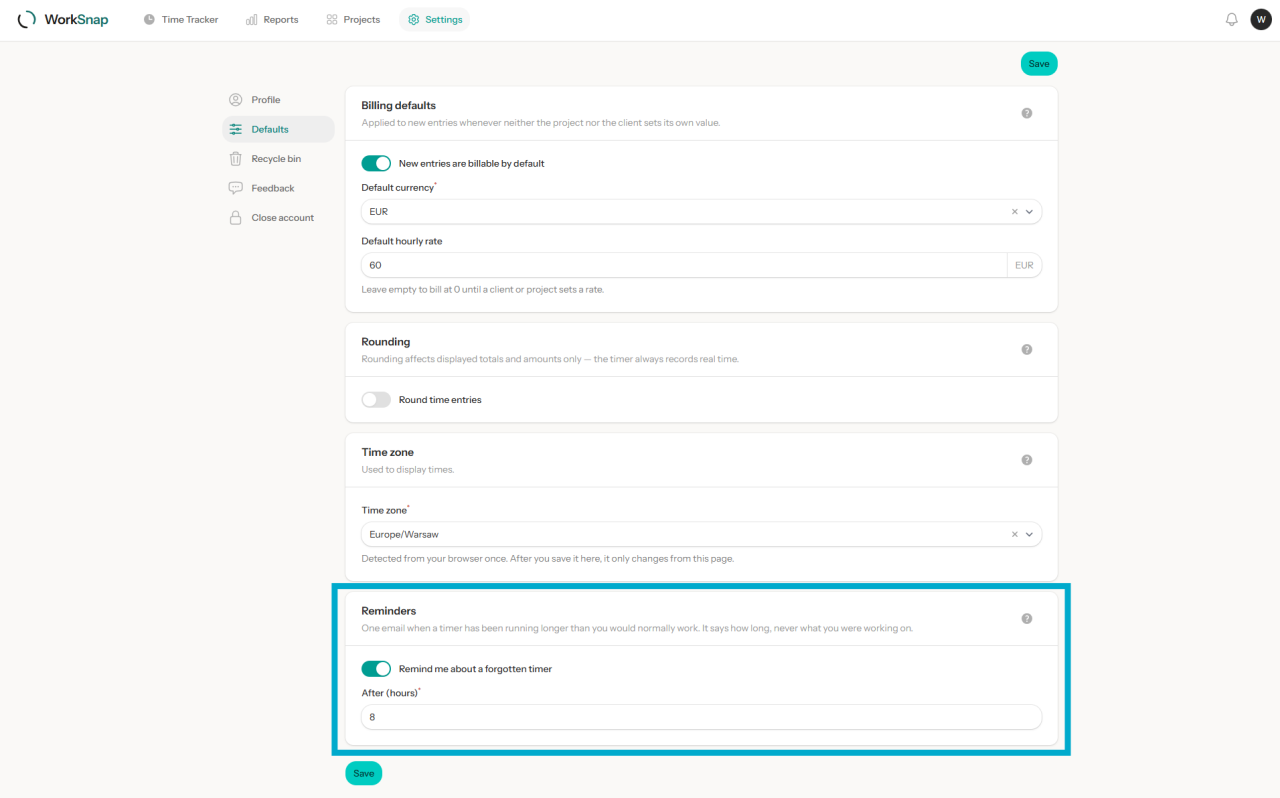
How to turn it on → A reminder for a forgotten timer
Resuming an entry shows its timer
Pressing Resume on an entry in the list starts a new timer with the same description, project and billable marking. If the bar at the top was set to Manual, that timer used to run out of sight; the bar now switches to Timer on its own, so the counter is in view straight away. Times you had typed for a manual entry are still there when you switch back.
More about the timer → Running a timer